Phone Tips and Tricks
Missing attribution
Missing attribution
Missing attribution
Framesira/Shutterstock.com
Missing attribution
Missing attribution
Missing attribution

7 Smartphone Settings Your Parents or Older Relatives May Love
Smartphones can do almost everything these days, but that also means the simplest features sometimes get buried beneath menus, tiny text, crowded screens, and settings most people never think to change.
If you have a parent, grandparent, older relative, or friend who finds their phone harder to read or more complicated than it needs to be, a few built-in settings can make a surprisingly big difference. None of these are exclusively for older users, either. They can help anyone who wants a phone that is easier to see, navigate, and use when it matters most.
Make the Text Larger
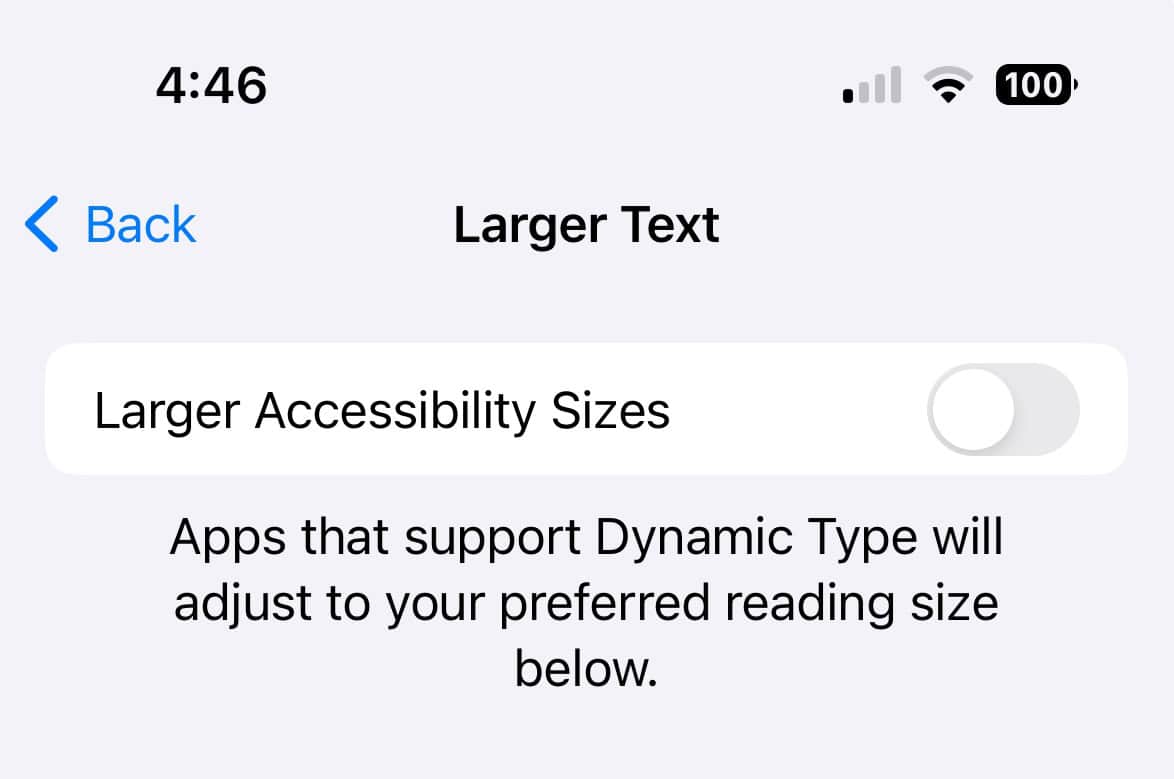
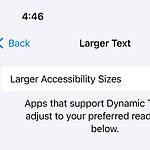
If someone is constantly squinting at messages or holding the phone farther away to read it, changing the text size should probably be the first stop. On an iPhone, go to Settings > Accessibility > Display & Text Size > Larger Text. Apple also lets you enable Larger Accessibility Sizes for an even wider range of font sizes and turn on Bold Text for additional visibility.
Android offers similar controls, although the exact menu can vary by manufacturer. Google's current Android guidance recommends searching Settings for Font size and Display size. On many phones, you'll also find these controls under Accessibility > Display size and text. Increasing the font does not affect every third-party app, but it can make the phone's core interface much easier to read.
Make Everything on the iPhone Bigger
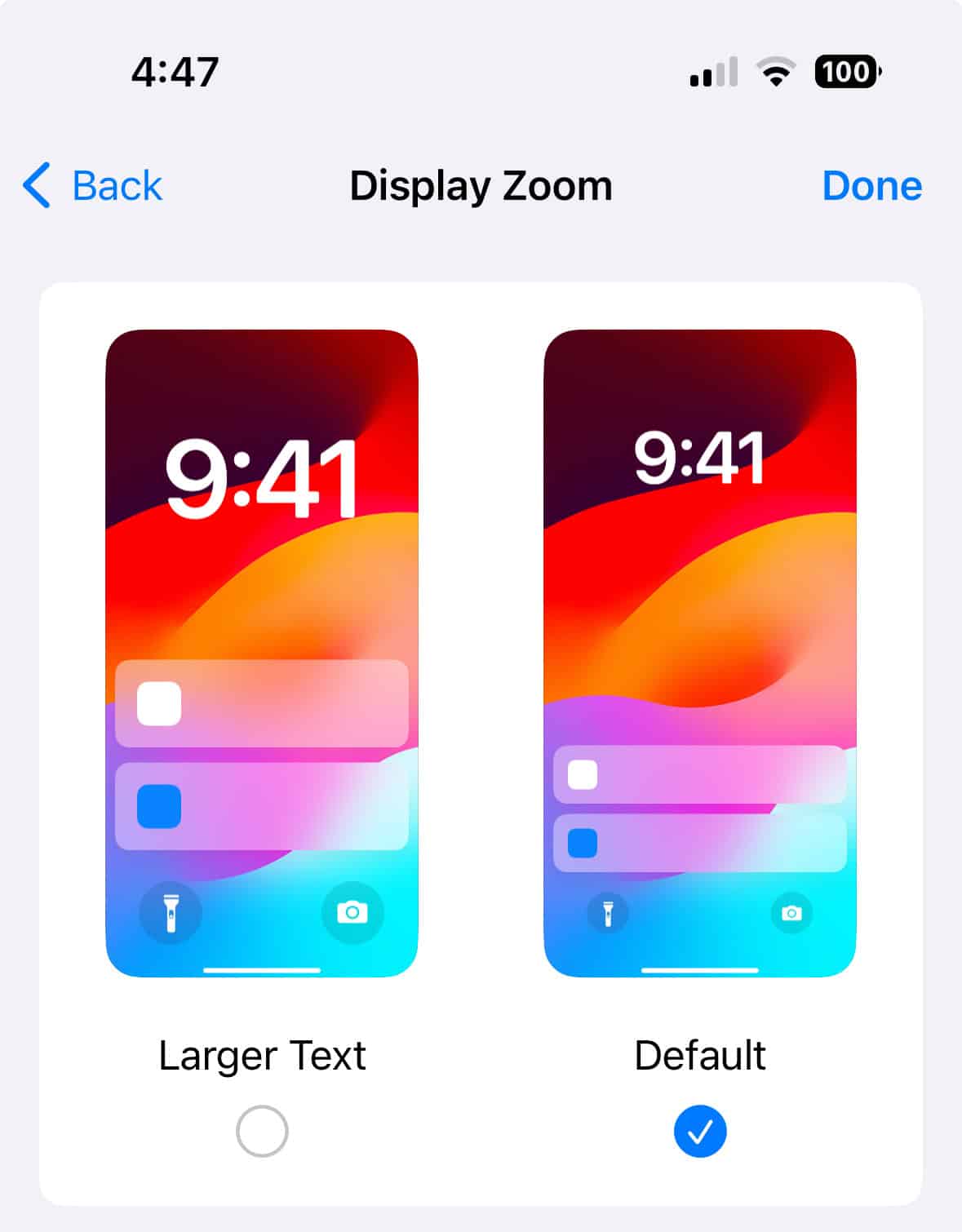
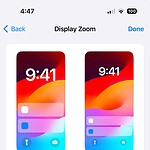
Making the words larger is helpful, but sometimes the buttons, icons, and other interface elements are the real problem. Apple's Display Zoom enlarges more of the entire iPhone interface instead of changing text alone.
On current versions of iOS, Apple places the feature under Settings > Appearance > Display Zoom. Choose the larger view and apply the change. Older versions of iOS may instead show Display Zoom under Display & Brightness, so don't be surprised if two iPhones have slightly different menu paths. Android users can get a similar effect by increasing the device's Display size setting.
Simplify an iPhone With Assistive Access
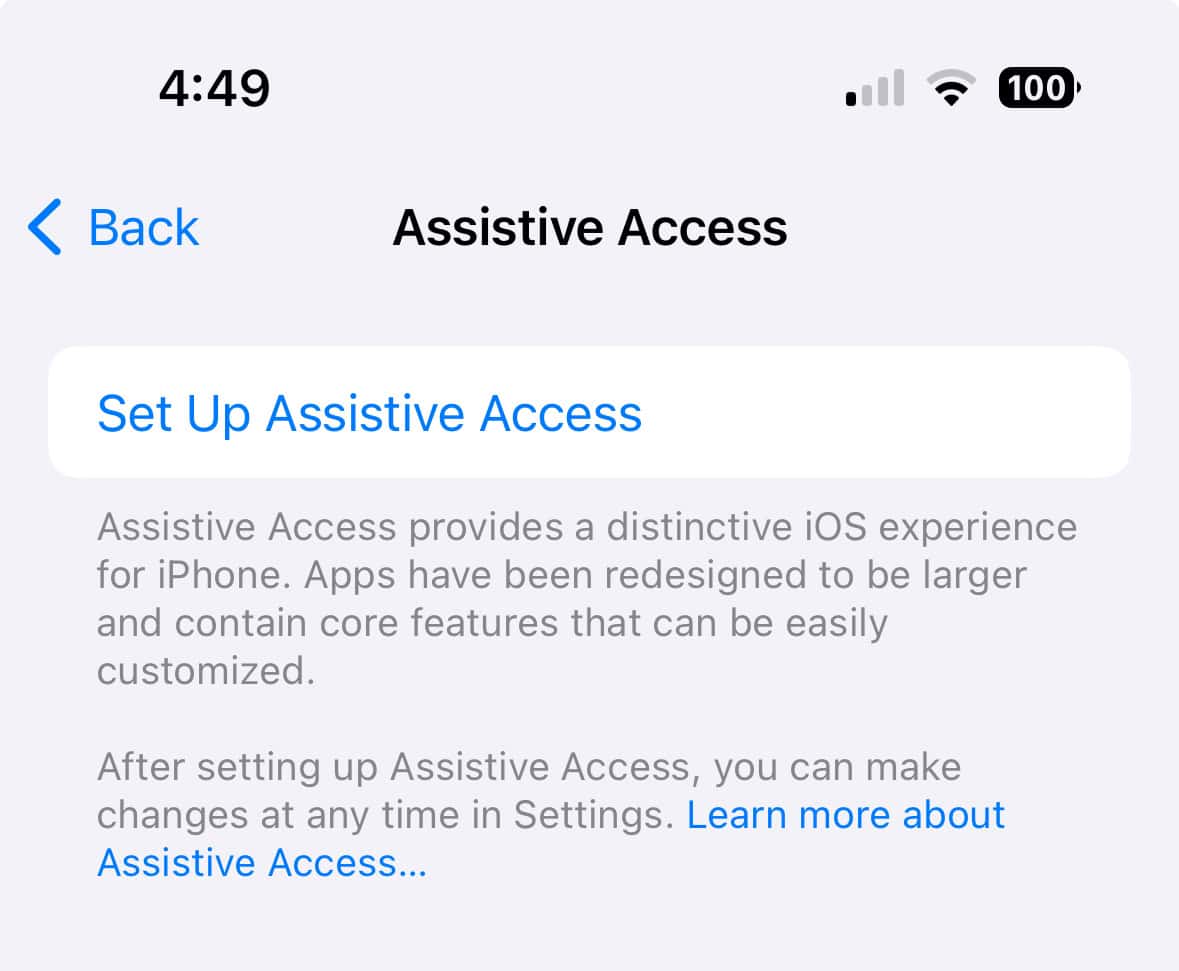
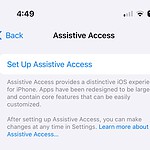
Assistive Access goes much further than simply increasing the font. Apple designed the feature primarily for people with cognitive disabilities, giving the iPhone a more focused interface with larger controls, simpler navigation, and the ability to limit which apps and features appear.
For someone who feels overwhelmed by a normal smartphone interface, it can be worth exploring with a trusted family member or caregiver. Go to Settings > Accessibility > Assistive Access and choose Set Up Assistive Access. Calls, Messages, Camera, Photos, Music, Magnifier, and other functions can be customized, and most regular iPhone apps can also be added. Unlike the original instructions, enabling Assistive Access does not simply restart the phone into a stripped-down mode. You configure it first and create a separate Assistive Access passcode.
Samsung's Easy Mode Can Remove Some of the Clutter
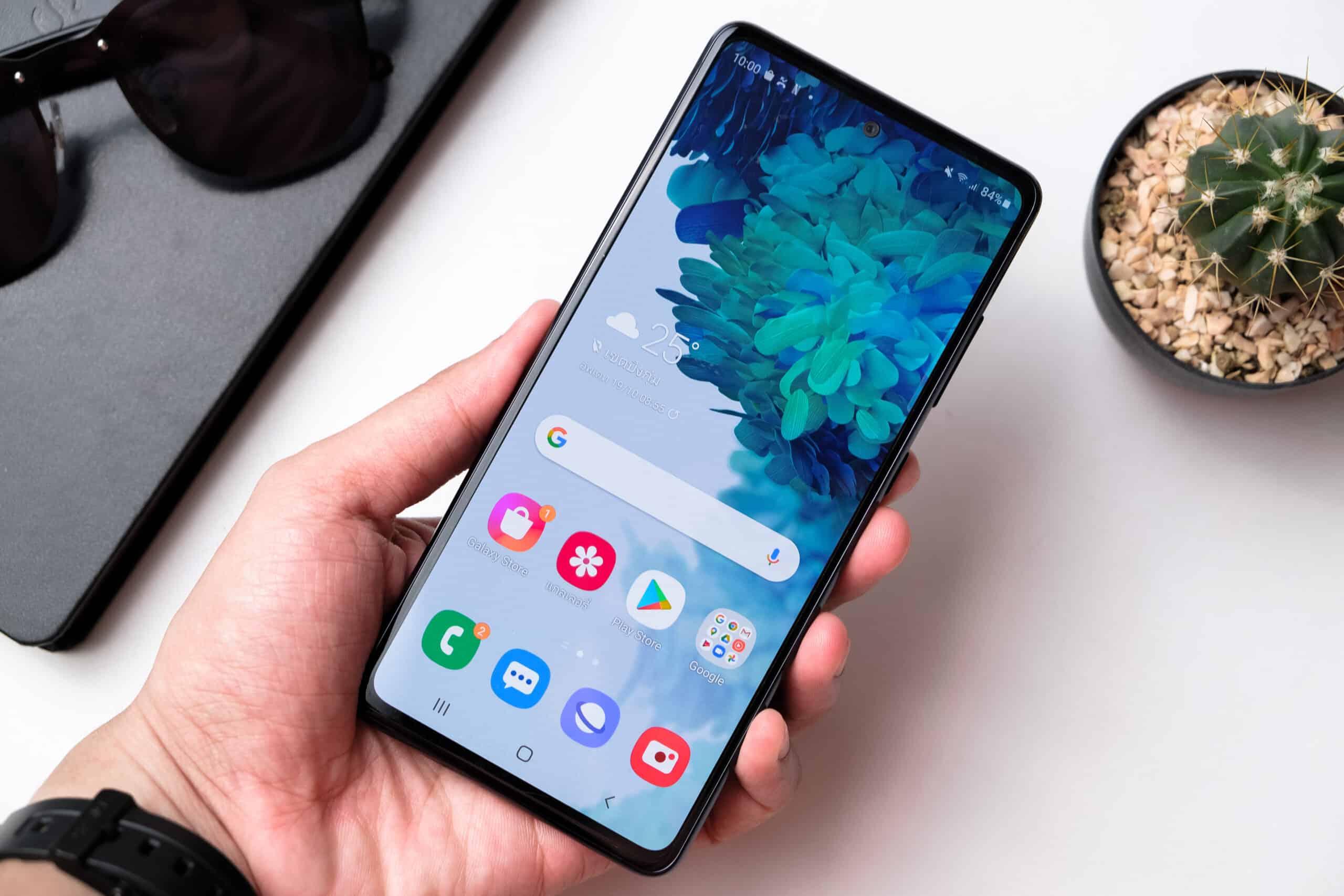
Samsung Galaxy phones offer their own simplified interface called Easy Mode. It is nowhere near as restrictive as Apple's Assistive Access, but it can make icons and other screen elements larger and create a less cramped home-screen experience.
On supported Galaxy phones, head to Settings > Display > Easy mode. Because Samsung changes its One UI software over time and features can vary by model, the exact appearance may differ slightly. The nice part is that Easy Mode can be turned back off whenever you want, so it is easy to try without permanently changing the phone.
Put the Most Important People One Tap Away
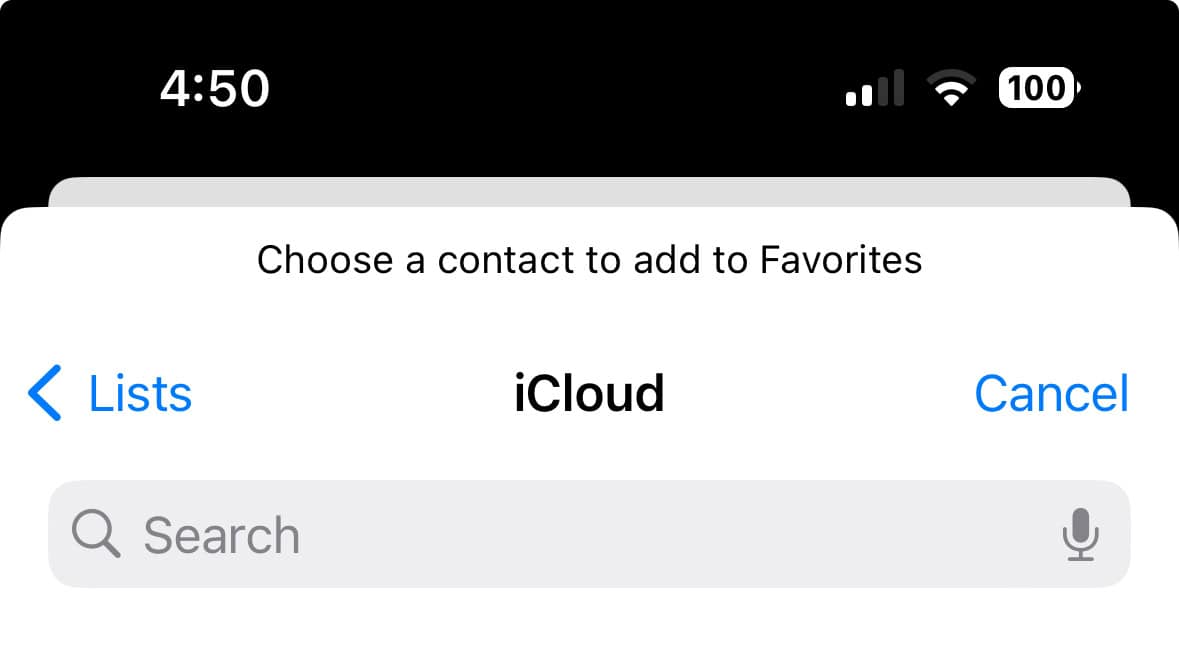
There is no reason someone should have to scroll through hundreds of contacts every time they want to call a spouse, child, grandchild, or close friend. On an iPhone, open the person's contact card and choose Add to Favorites. Current versions of the Phone app can display favorite contacts prominently near the top of the Calls screen, while the Classic Phone layout has a dedicated Favorites section.
Samsung phones also support speed dialing. Open the Phone app, tap the three-dot menu, and choose Speed dial numbers. Assign frequently called contacts to numbers on the keypad, and those people become much faster to reach.
Let Your Voice Make the Call
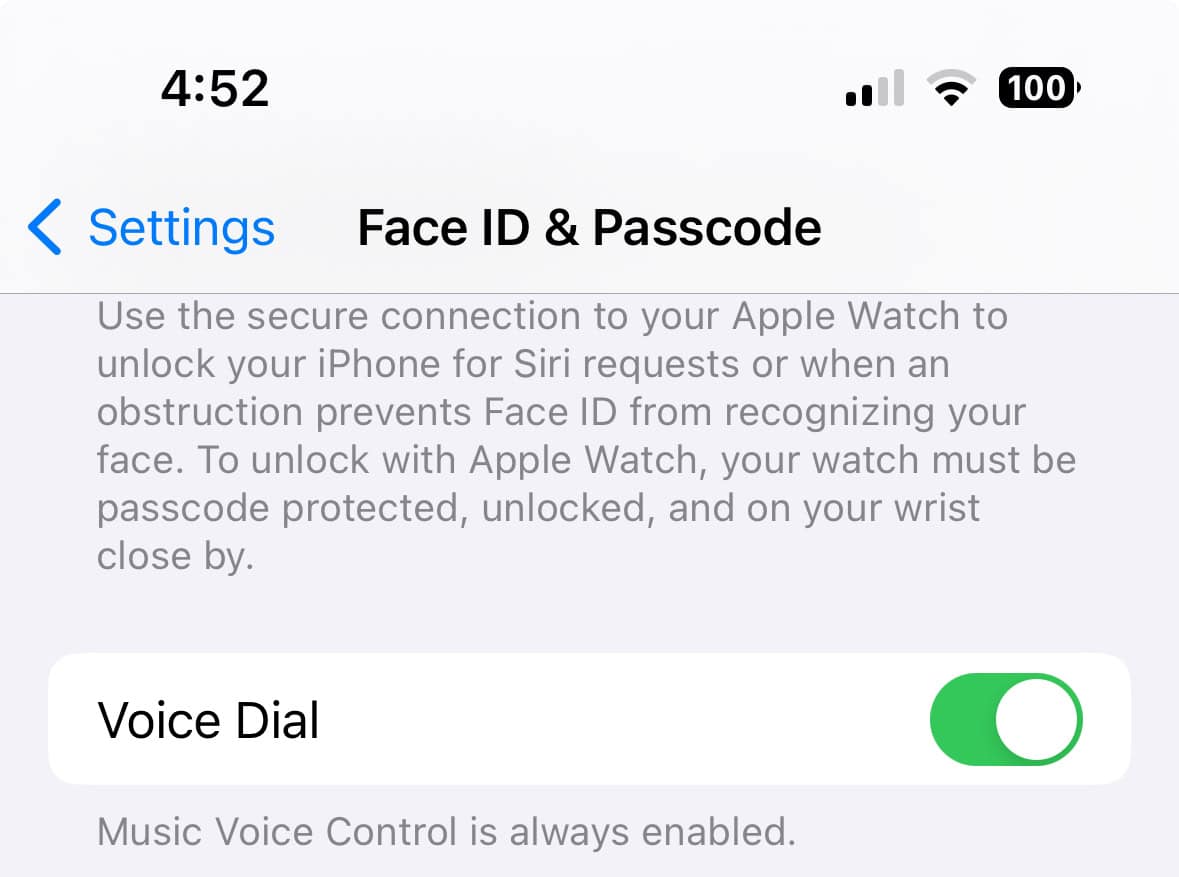
Voice calling can be especially useful when navigating a contact list is frustrating. On an iPhone with Siri enabled, you can simply ask Siri to call a contact by name. There is no need to hunt down a separate "Voice Dial" switch before ordinary Siri calling will work.
Android also offers hands-free options. Google's Voice Access accessibility feature can make calls with commands such as "Call [name]" once it has been set up. Depending on the phone, Google Assistant or Gemini may provide additional voice calling features as well. The exact voice assistant varies more across Android devices than it does on the iPhone, so this is another setting worth configuring together rather than assuming it already works.
Add Emergency Contacts and Medical Information
This is the setting worth checking even if someone has absolutely no trouble using their phone. Both iPhone and Android can store emergency contacts and basic medical information that may be accessible from the lock screen if the owner chooses to make it available.
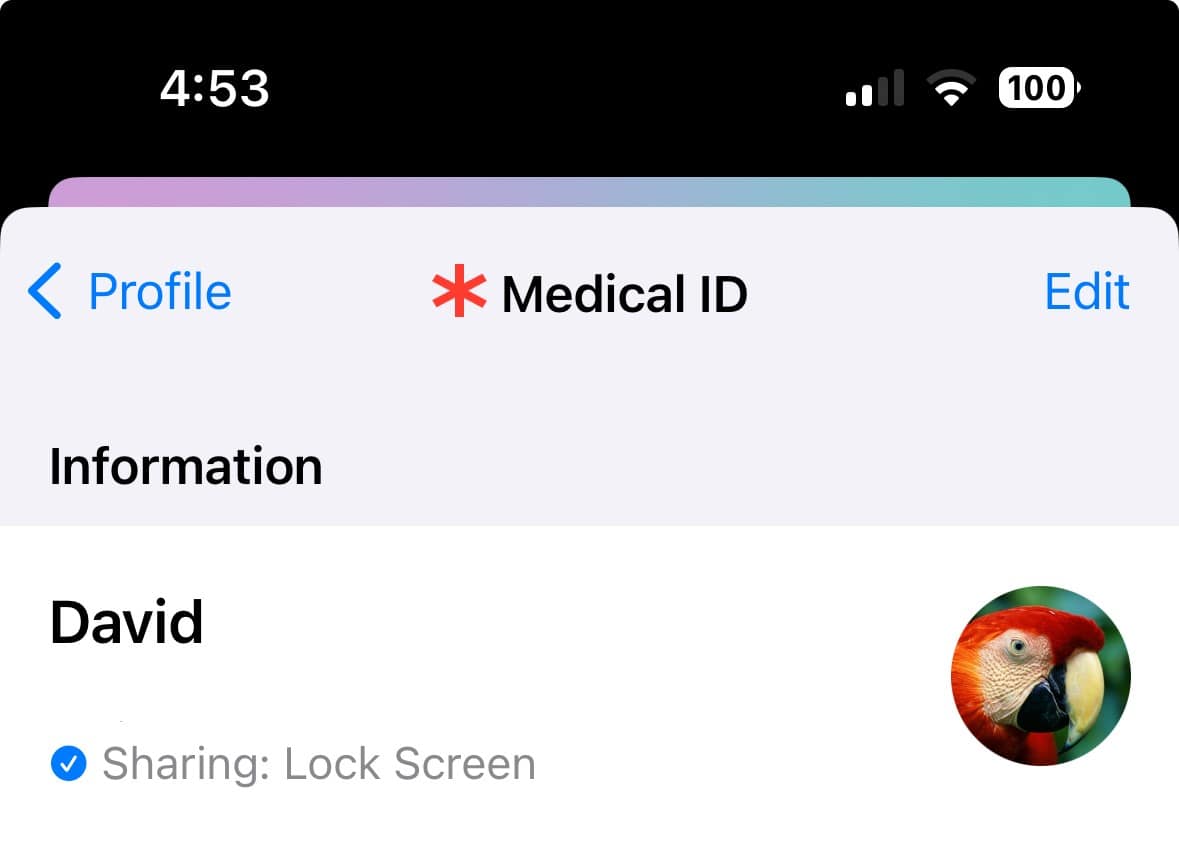
On an iPhone, open the Health app, tap the profile picture, and choose Medical ID. You can add emergency contacts, allergies, medications, medical conditions, blood type, and other information. Turning on Show When Locked allows first responders to view that information without knowing the phone's passcode.
On many Android phones, look under Settings > Safety & emergency or open Google's Personal Safety app. Samsung Galaxy devices also place emergency contacts and medical information under Settings > Safety and emergency. Keep in mind that enabling lock-screen access means someone physically holding the phone may be able to view the information you choose to share, so only include details you are comfortable making available in an emergency.